
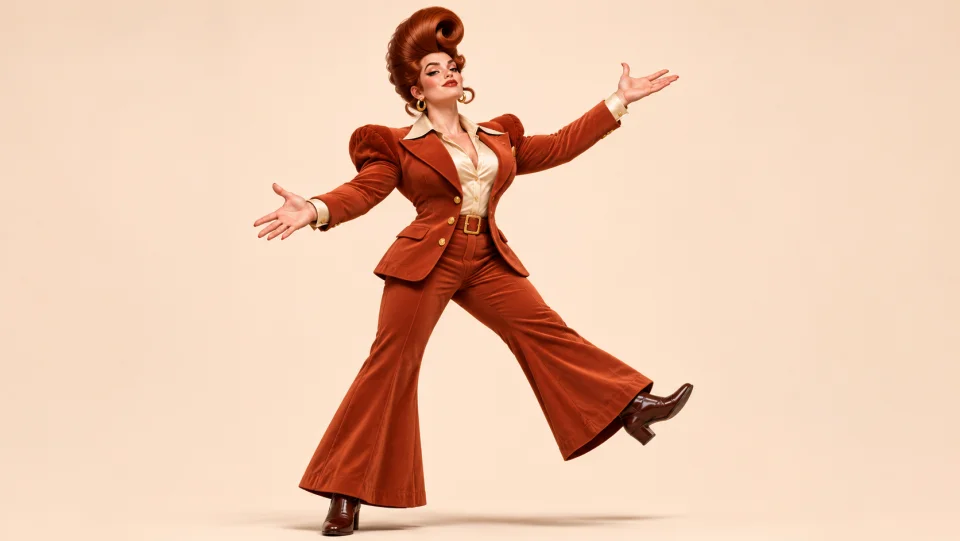
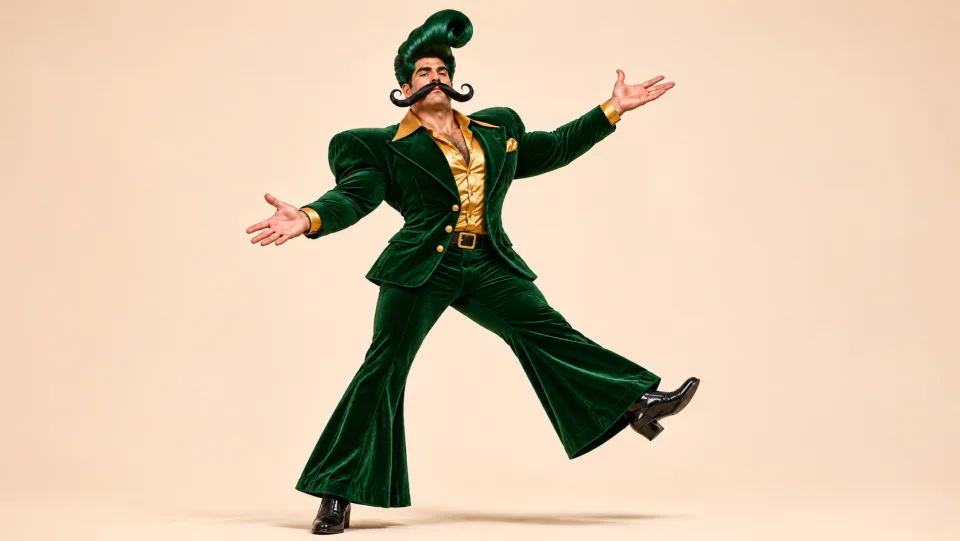
01
Choose a reference
A reference clip shows a gesture, its direction and its pace. Choose one continuous action with a clear beginning and end so you can compare those details in your result.
Motion control studio
Create a motion control video by guiding a character with movement from a clip. Choose a ready-to-use performance or add your own reference and photos.
Creations from this workspace appear here.
Browse prepared motion references and preview a scene before creating your own video.
Motion control lets you start with a performance you can see. A reference video guides the action, timing and framing, while your photos provide visual details for the people, animals or objects requested by the selected workflow. The resulting video is a new generation, so appearance, motion and background can vary. A motion control template supplies an existing scene and its role slots. To explore a different movement, exit the template and upload your own clip with a compatible model. The motion control workspace shows available inputs, settings and estimated credits before you submit. These comparison clips illustrate similar movement and were created elsewhere; they may use different references.
Start with a motion control template or a supported clip, then prepare a photo for each requested role.
Step 1
Preview a template in the collection, or leave template mode to add a supported video of your own.
Step 2
Add a clear photo for each role in the scene. Match the crop to the reference: a full-body action benefits from a photo that shows the whole figure.
Step 3
Check the available model or mode, resolution and estimated credits, then sign in to generate. Watch the entire result for changes in identity, hands and timing before downloading the version you want to keep.
Use a visible performance to guide the gesture and timing of your AI video.
01
A reference clip shows a gesture, its direction and its pace. Choose one continuous action with a clear beginning and end so you can compare those details in your result.
02
Trim a longer recording to the performance you want to use. Leave enough space around the action and check that the subject stays visible throughout the clip.
03
The workspace shows the available model, resolution and credit estimate. Review them together with the reference length before you start a generation.
Explore how a character photo and a movement reference can work together.
An outdoor scene
01
Try a greeting or a hand movement with an upper-body photo. Choose a reference that keeps the hands and elbows in view, then inspect them when they cross the face or body.
02
Pair the same reference with different character images. Use comparable crops, then review the face, clothing and silhouette in each interpretation.
03
Use a close reference for a head turn or a small upper-body action. A clear face and a matching crop give you a useful starting point for checking expression and pose.
Choose a clear photo and a readable, continuous reference clip.
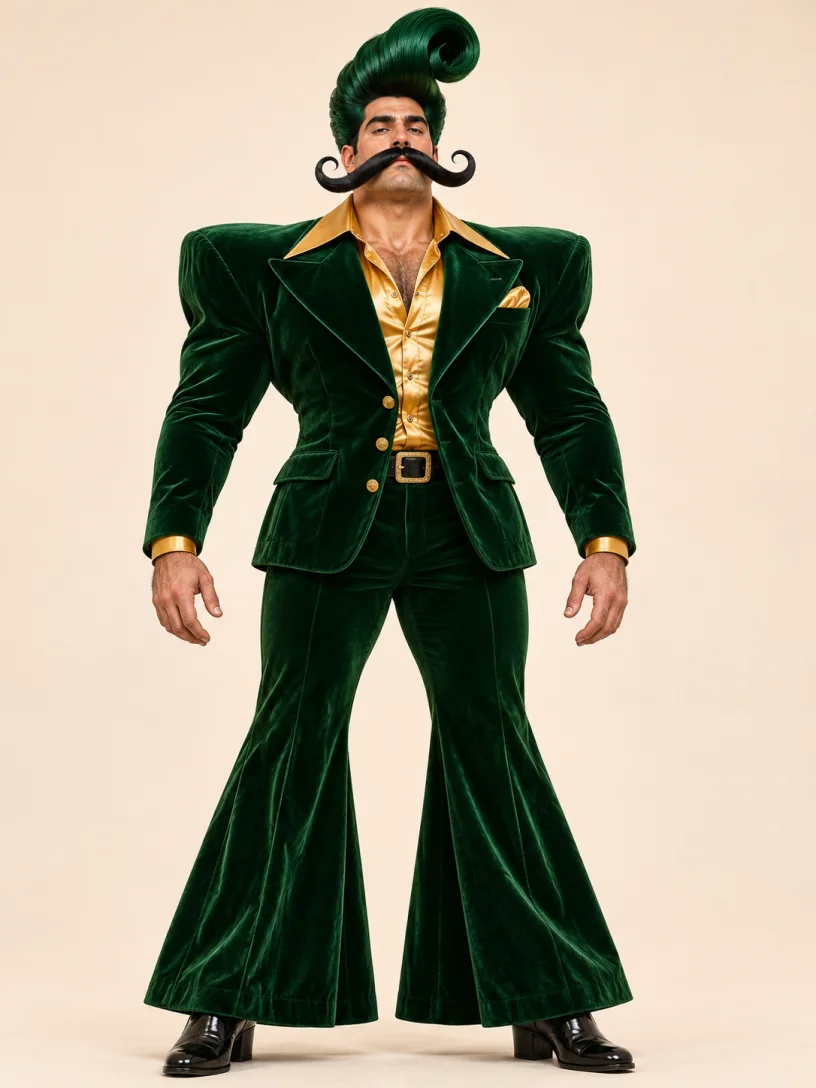
Match the photo crop to your reference. Include the whole body for a dance, or the face, hands and elbows for an upper-body gesture.
Recommended
Avoid

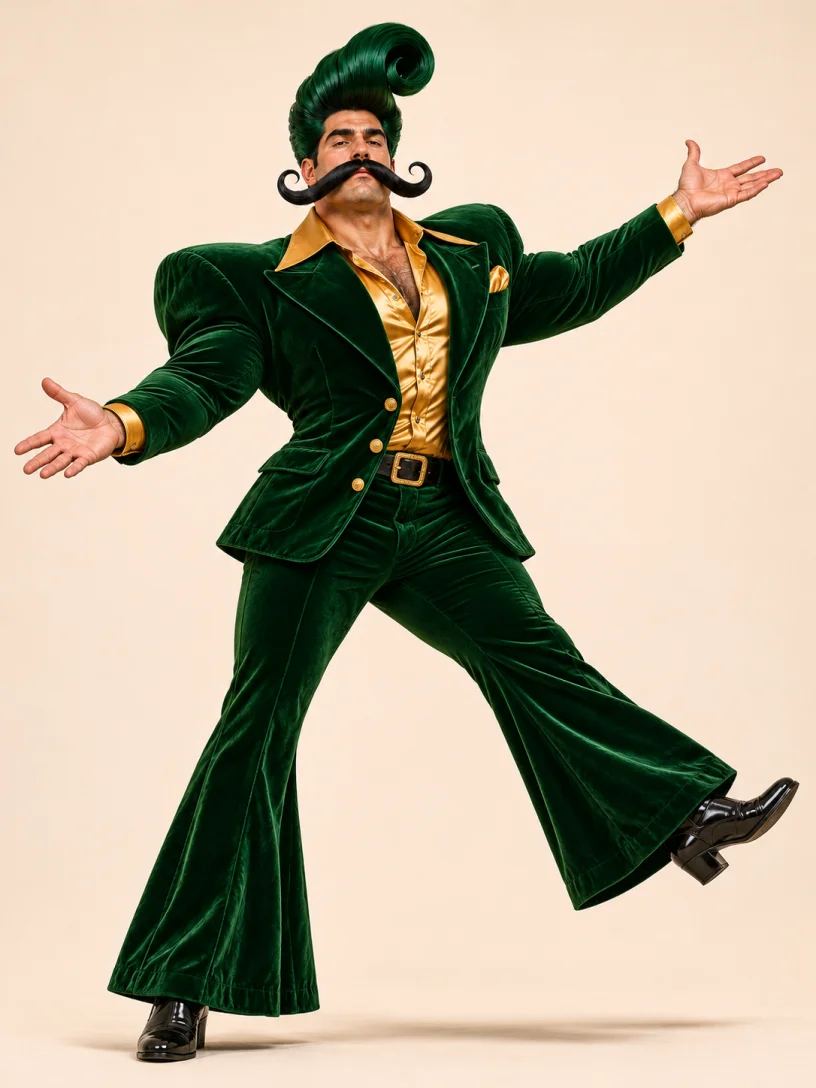
Choose a clip where the moving subject is easy to follow. Watch for limbs leaving the frame, people crossing in front or objects hiding the action.
Recommended
Avoid
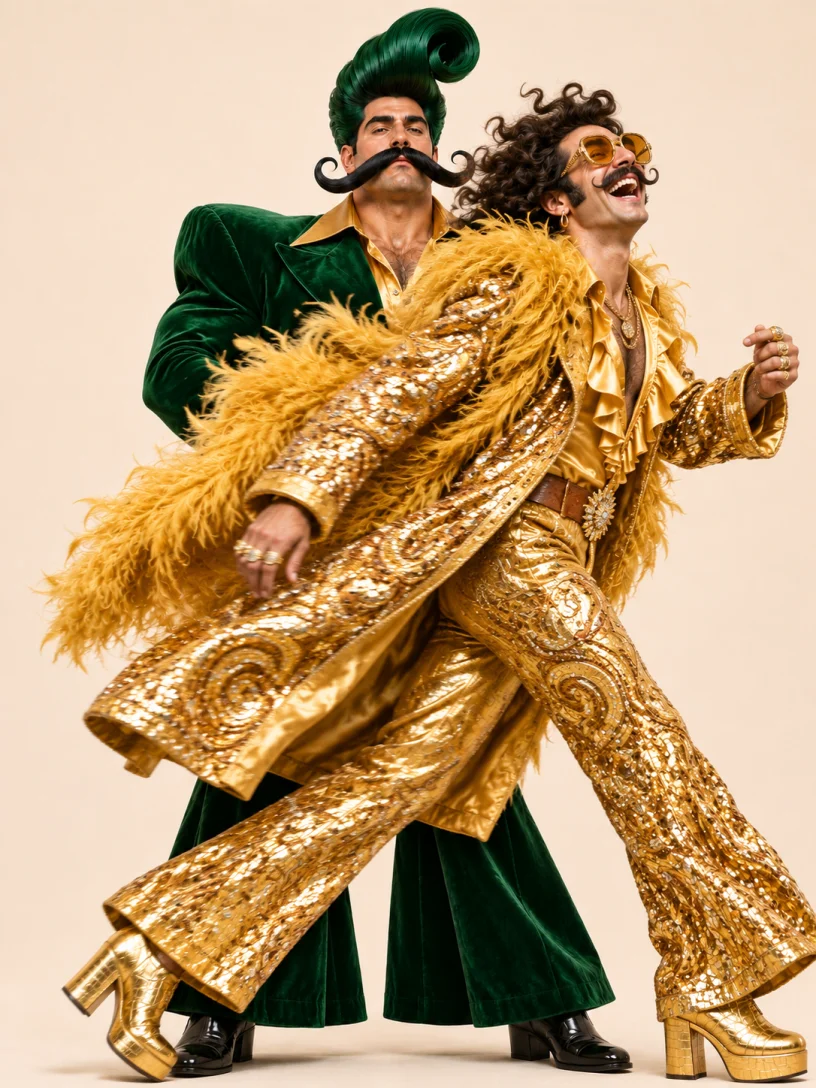
Preview the full reference and trim unrelated cuts. A clear, steady clip makes it easier to judge movement in the finished video.
Use credits for the available image, video and motion control workflows.
For your first ideas.
$160.92 charged yearly
6,600 credits/year
Up to 1,100 images
Up to 366 videos
For a steady creative flow.
$383.04 charged yearly
18,000 credits/year
Up to 3,000 images
Up to 1,000 videos
For more creations, more often.
$671.16 charged yearly
38,400 credits/year
Up to 6,400 images
Up to 2,133 videos
Try before you subscribe
Prices in USD; taxes and total shown at checkout. Subscriptions renew automatically; cancel in Billing settings. Subscription credits expire each period; one-time credits never expire.
Refunds: request within 72 hours. Used purchased credits and applicable non-refundable processing costs (up to 6%) are deducted. Terms · Refund Policy
What to know before you create.
A motion control workflow combines an appearance reference, such as a character photo, with a video that guides movement. The exact inputs and limits depend on the model or template you select.
Yes. Leave template mode and upload a supported motion control video in the workspace. Available length and file limits depend on the model you select.
Each template shows its required and optional photo roles. Choose images where the relevant person, animal or object is easy to see.
A motion control reference guides the movement, but generated results can vary. Check the face, limbs, clothing and timing throughout the finished clip.
The workspace shows an estimate for your selected model and settings before you submit. Sign in and review the estimate and your available balance before generating.
Try a clearer motion control photo that includes the moving body parts, or choose a reference where the subject stays visible. Review one change at a time and compare the full video, especially fast turns and overlapping hands.
Match the photo to the action. Use a full-body image when feet and legs move; for a close gesture, include the face, shoulders and any hands that enter the shot.
Yes. Open a template preview to study its timing and framing, then choose it to load the corresponding roles. Previewing does not submit a generation.
Use My creations in the workspace to review available results. A signed-in account also has a history where supported completed work can be reopened.
Compare the motion control inputs and settings offered by each available model. Check its reference length, resolution and estimate before submitting.
Check the motion control limit shown for your selected model. When trimming is available, keep the continuous action you want to use.
Choose a motion control template that supports the intended role and provide a clear photo of the pet, including the parts involved in the movement.
Yes. When changing a motion control template would replace existing inputs, the workspace prompts you before switching.
Motion control audio depends on the selected model, template and mode. Check the available controls and review the sound in the finished clip.
A motion control reference guides movement, while the generated appearance and setting can vary. Review the entire scene before using the result.
Review available motion control results in My creations. Compare the same moments for identity, clothing and pose before choosing a version.
Give your photo a motion reference or browse a performance that fits your idea.