
AI Video Trends & Templates
Browse AI video trends by movement or scene. Preview a performance, select the template and prepare photos for the roles it includes.
Motion studio
White Dress Dance AI
Celebrity Kitchen AI
Fancy Cafe AI
Chipmunks Dance
Closing Door Prank
Damon Salvatore AI
End of Watch AI
Birds of a Feather AI
Tiny Desk AI
Creations from this workspace appear here.
Find AI video trends that suit your idea
Explore AI video trends by dance, pets, rap, performance, action or creative scenes. Search by name when you have a particular idea, or use the category and sort controls to discover a performance. Previewing helps you see the movement and framing before choosing a template. Each selection opens its matching photo roles and settings in the workspace. AI video trends can require different numbers of photos and use different reference lengths or audio; check the individual template and estimate before creating. To use a clip of your own, return to the free-form homepage workspace.
Find a performance
Explore AI video trends by movement, scene or idea. Preview a performance before opening it in the workspace.
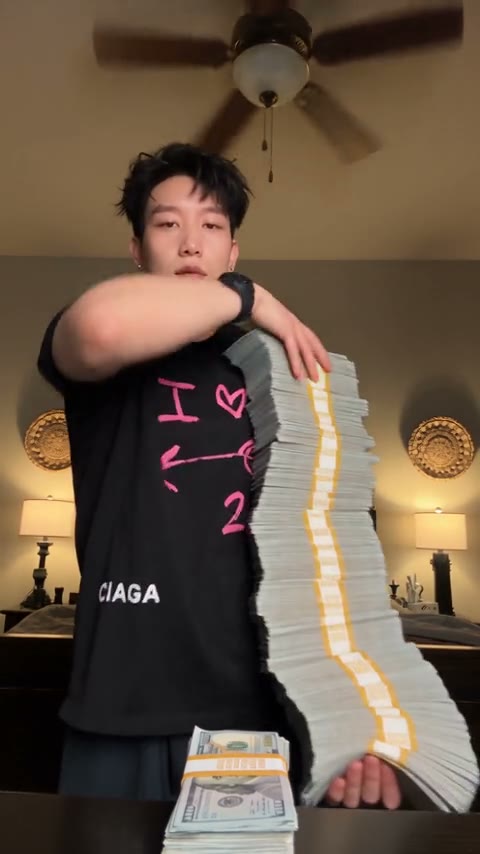
Add the cast
Add your photos to the roles shown by the selected AI video trends template. Each performance can require different inputs.
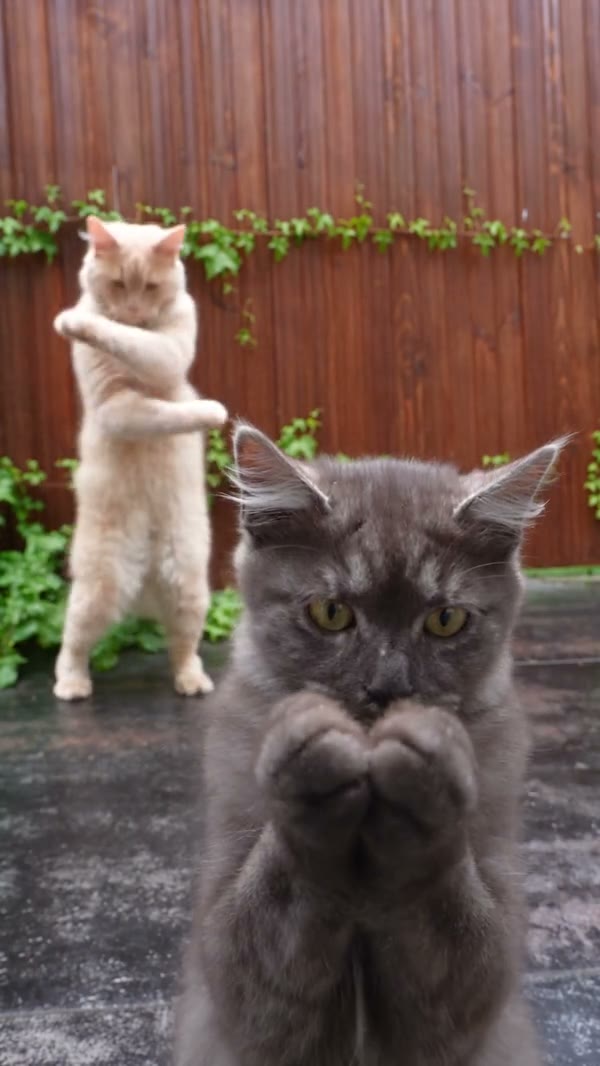
Review your version
Review the settings and estimated credits for AI video trends, then watch the complete result before downloading.
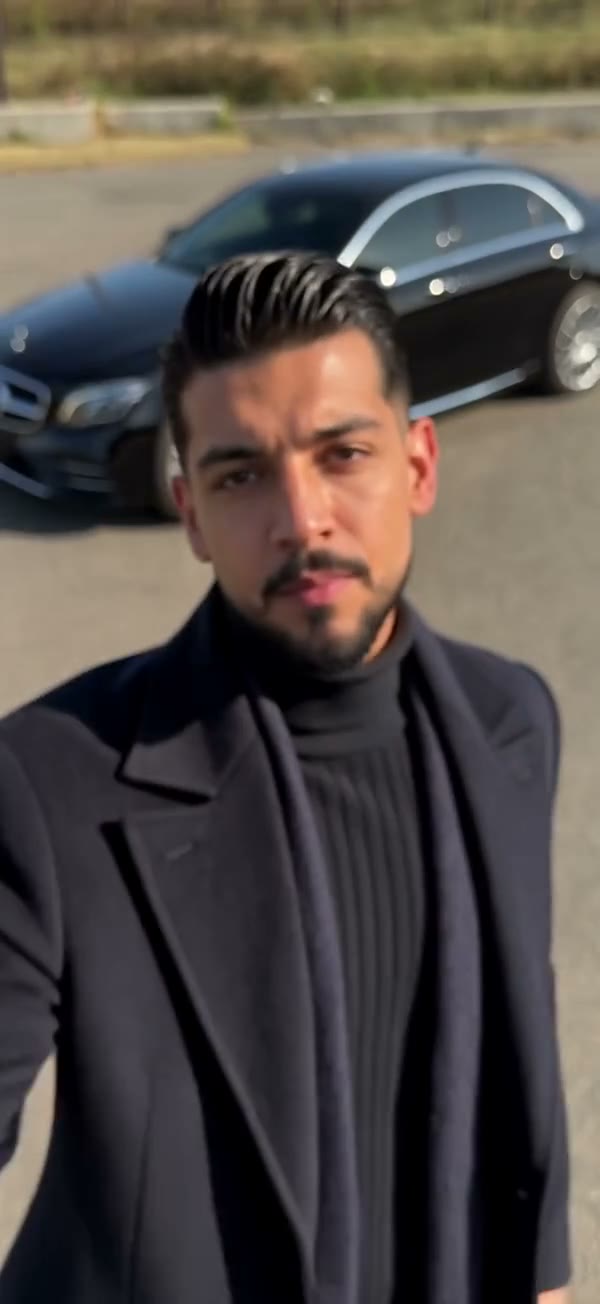
Create with AI video trends
Preview AI video trends and prepare a photo for each role in the performance you choose.
Step 1
Find a trend
Search or filter the AI video trends collection and preview a performance.
Step 2
Open its workspace
Select one of the AI video trends to load its roles and available settings in the workspace.
Step 3
Create your video
AI video trends can require several subjects. Add a separate photo for each required role and check that each subject is easy to recognize. AI video trends offer different modes. Review the mode and credit estimate, generate, then watch the whole result before downloading.
AI video trends: questions and answers
What to know before you create.
Do all AI video trends use one photo?
No. AI video trends can require one or more photos; the selected template lists its roles.
Can I change my selection?
Yes. Choose another template in the AI video trends workspace. The interface warns you when switching would replace existing inputs.
Can I start without a template?
Yes. Alongside the AI video trends collection, the homepage has a free-form workspace for your own references.
Does previewing AI video trends spend credits?
Browsing AI video trends and loading a template do not submit a generation. Review the estimate and required inputs before you choose to generate.
Can I search AI video trends by scene?
Use the directory search and categories to explore AI video trends for dance, pets, performance and other creative scenes.
How do I prepare photos for group AI video trends?
For AI video trends with groups, read the template’s role labels. Supply a separate clear photo for each required participant and check optional roles before generating.
Do AI video trends always include audio?
Audio depends on the selected template and mode. Preview the example and review the available settings; the generated result may vary.
How are AI video trends sorted?
Use the directory sort control to change the order of AI video trends. Categories and search help narrow the collection by scene or movement.
What kind of photo works best?
For AI video trends, match the crop to the action: a full-body routine needs more of the subject than a close-up gesture.
Can AI video trends include a pet?
Choose AI video trends that include a compatible pet role, then provide the requested clear photo.
Do I have to sign in to browse?
You can browse and preview AI video trends before signing in. Sign in when you are ready to generate.
Where can I review my finished video?
Review your results from AI video trends in My creations or return to supported completed work through account history.
What should I check before sharing?
Watch the full result of AI video trends for faces, limbs, timing and sound. Use reference photos you have permission to animate.
Find AI video trends for your next idea
Preview a performance, choose a template and prepare the photos for its roles.