Create a video

Required photos1
Settings
Mode
Video length15s
Resolution

Car Drift AI Video Generator

Make a Car Drift AI video from one vehicle photo and watch it take a snowy turn.

0:00 / —:—
0:00 / —:—

Car Drift AI video ideas

Explore the available versions and choose the shot that fits your edit.

Turn a vehicle photo into a moving shot

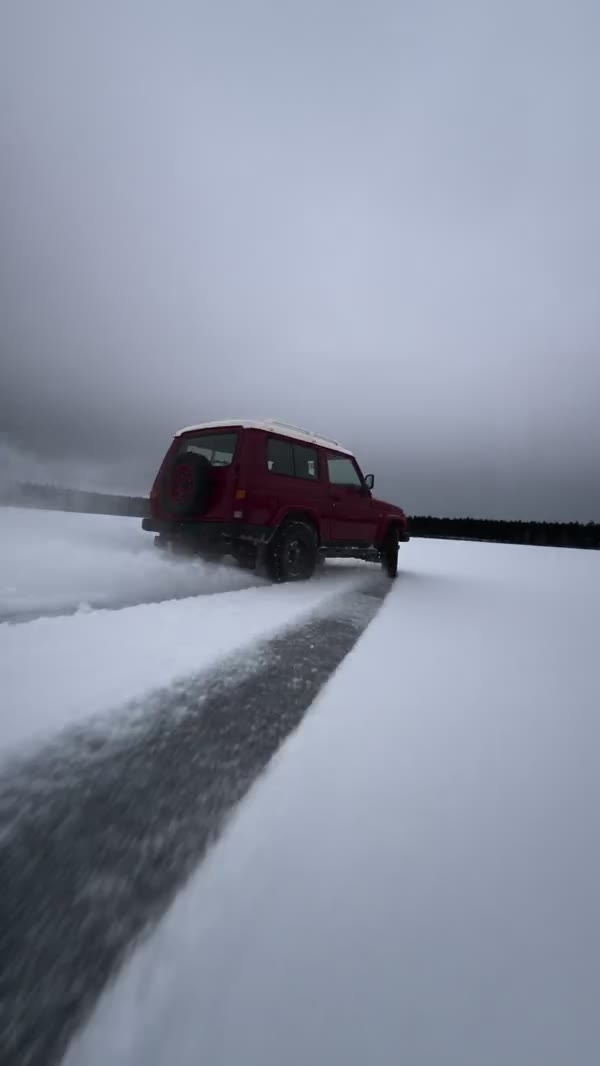
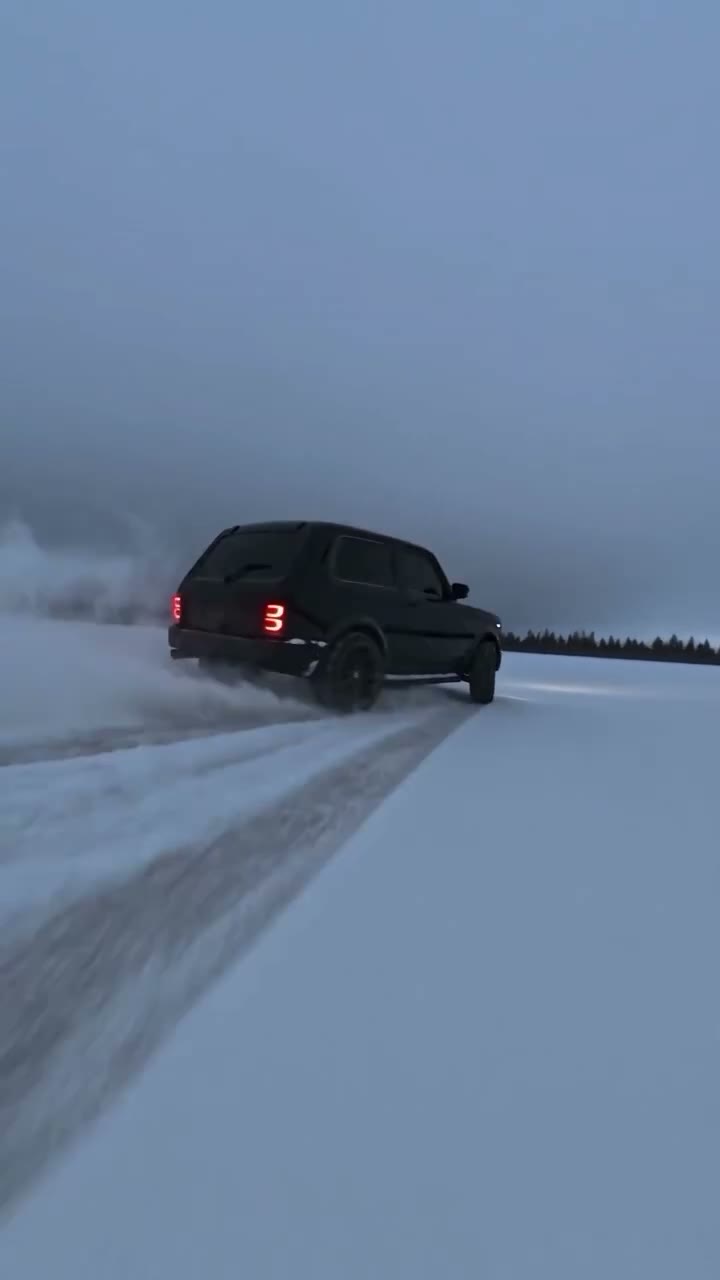
Car Drift AI places the car from your picture into a prepared snowfield sequence. A gloved hand appears before the car drives away and makes a turn. The camera, surroundings and action follow the reference. You can use the shot as a quick vehicle introduction or a transition in a longer edit; the finished video is generated and may differ from the preview.

A car drives across a snowy setting and drifts

Create a Car Drift AI clip

Prepare a car image, select a version and inspect the moving result.

  1. STEP 1

    Select a vehicle

    Upload one authorized image showing the car you want to feature.

  2. STEP 2

    Choose the shot

    Play the preview and compare the available reference modes and estimate.

  3. STEP 3

    Watch the result

    Generate from your account, then review the drift and sound in My creations.

Car Drift AI

Make a Car Drift AI video from one vehicle photo and watch it take a snowy turn.

Give the model a readable car

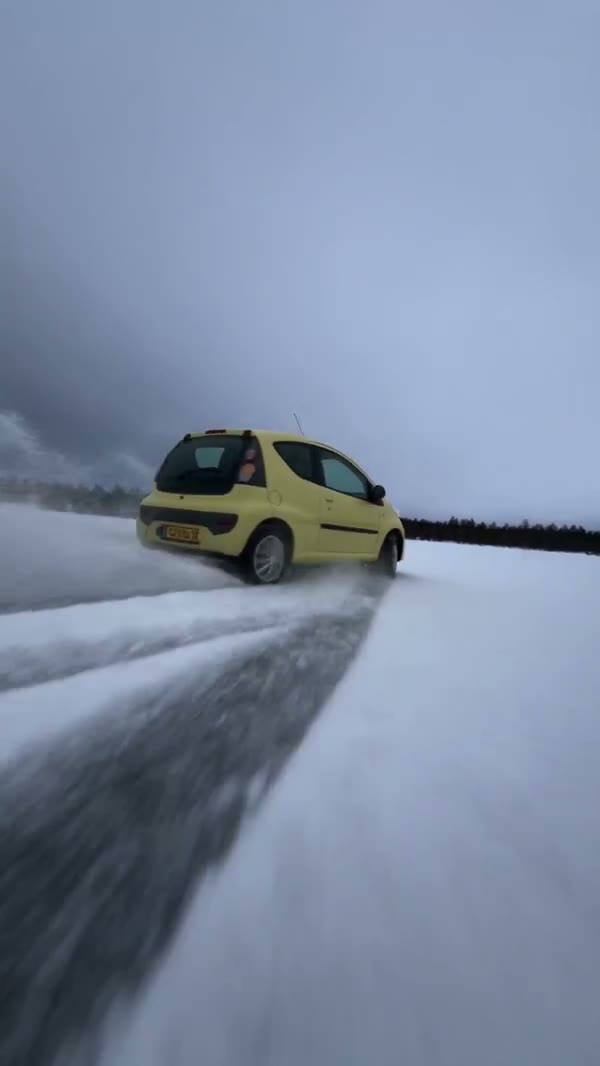
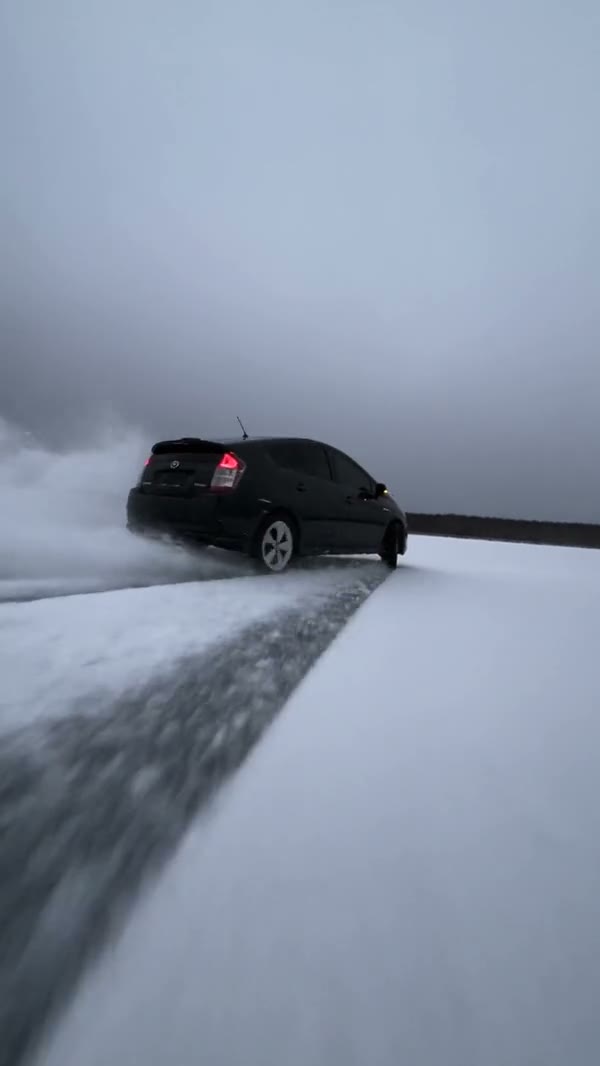
For Car Drift AI, choose one photograph in which the vehicle is clearly visible and separated from the background. A view that shows the overall body shape and color gives useful information for the moving shots. Reflections, wheels, badges and small markings are difficult to preserve exactly; inspect the result rather than expecting a frame-perfect copy.
Give the model a readable car

Compare the full drive with the short selection

Original follows the complete reference, a little over 15 seconds, while Economy and Standard use its approximately 14.9-second prepared selection. Check the selected mode and estimate in the form. Each mode creates a new result, so consider the turn, framing and identity of the vehicle throughout the sequence.

Compare the full drive with the short selection

Review the car through the turn

Watch how the vehicle changes size and angle as it moves away. Pay attention to the shape of the body, wheels and the contact with the snowy surface. The source contains audio and the workflow attempts to restore it; listen to the completed clip as well as checking the visuals before using it.

Review the car through the turn

Car Drift AI FAQ

Prepare a car image, select a version and inspect the moving result.

What does Car Drift AI need?

One car photo is required. The snowy scene and its movement are prepared in advance, so a separate motion video is not needed.

Can I choose the road or weather?

The template follows the prepared snowfield and camera. There is no separate road, weather or camera-path setting on this page.

Will my exact logo remain visible?

Body shape and color are guided by the image, but small logos and lettering can change as the vehicle moves. Check the finished video closely.

How long is the Car Drift AI reference?

The complete source is just over 15 seconds. Economy and Standard use an approximately 14.9-second selection; the workspace shows rounded durations.

Does the generated car include sound?

The workflow attempts to restore the source audio after generation. Play the actual result to check its sound and timing.

Create Car Drift AI

Explore the available versions and choose the shot that fits your edit.

Car Drift AI